Signing in
- Open FolioFly, type your email and password, and press Sign In.
- New to FolioFly? You'll get an email with a link. Open it, choose a password, and press Save Password and Start. Open the link on the phone or computer you'll use.
- Does your link say it has expired? These links only work for a short time, so open the email soon after it arrives. If it has expired, FolioFly takes you to a box where you type your email and press Email Reset Link. Open the new email on the same phone or computer and choose your password. You do not need another invite. If the email doesn't come, look in your Spam or Junk folder.
- Can't open the link, or it keeps failing? The email also has a short number code. On the sign-in screen press Type the code from your email, type your email and the code, and press Check Code. Then choose your password. The code works only once and only for a short time. If you have no email at all, ask the person who invited you to send you a new code.
- Left the page before choosing a password? Just open FolioFly again on the same phone or computer. It will ask you to choose your password. To start over instead, press Back to sign in.
- Forgotten your password? Press Forgot password?, type your email, and press Email Reset Link. Open the email on the same phone or computer and choose a new password. Check your Spam or Junk folder if you can't see it. You can also use the code in the email: press Type the code from your email.
To leave, press Sign Out at the top right. Your records stay safe in your account and are there when you sign in again, on any phone or computer.
Setting up, first time
The first time you sign in, everything is empty. Do these in order. You only do this once.
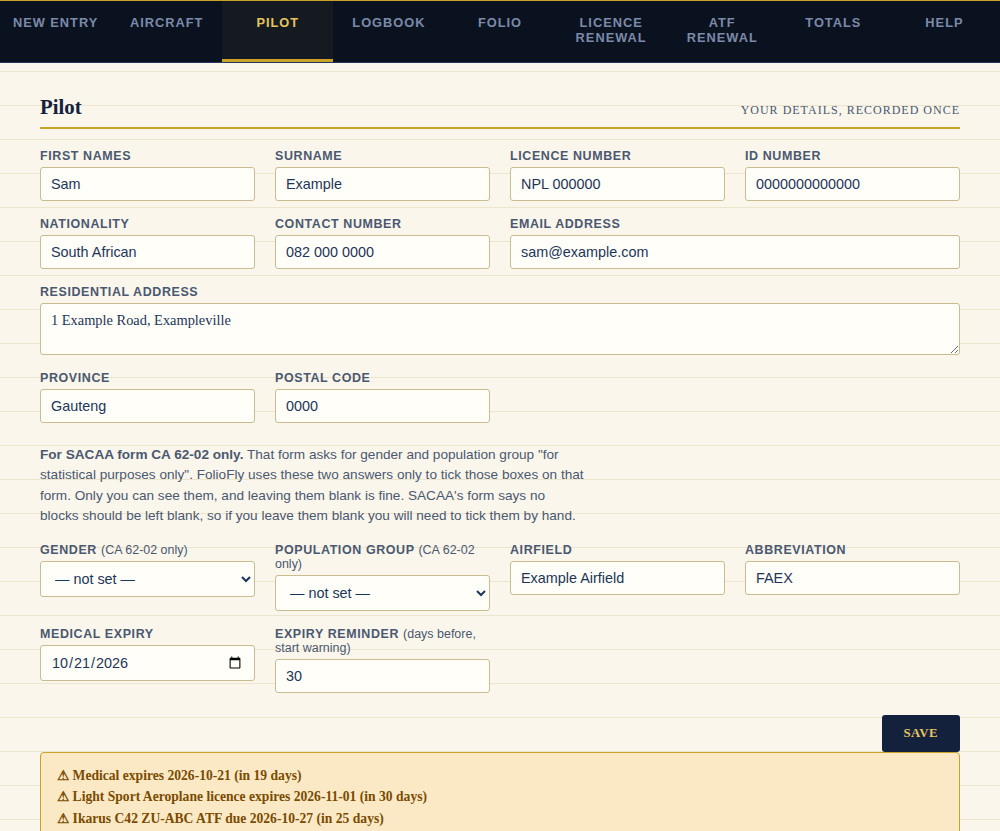
- Pilot tab. Enter your name, licence number, ID number, home airfield and medical expiry date, then press Save. There are also two optional boxes, Gender and Population Group. SACAA's form CA 62-02 asks for them "for statistical purposes only", and FolioFly uses them only to tick those boxes on that form. Only you can see them. SACAA's form says no blocks should be left blank, so if you leave them empty you will have to tick them by hand.
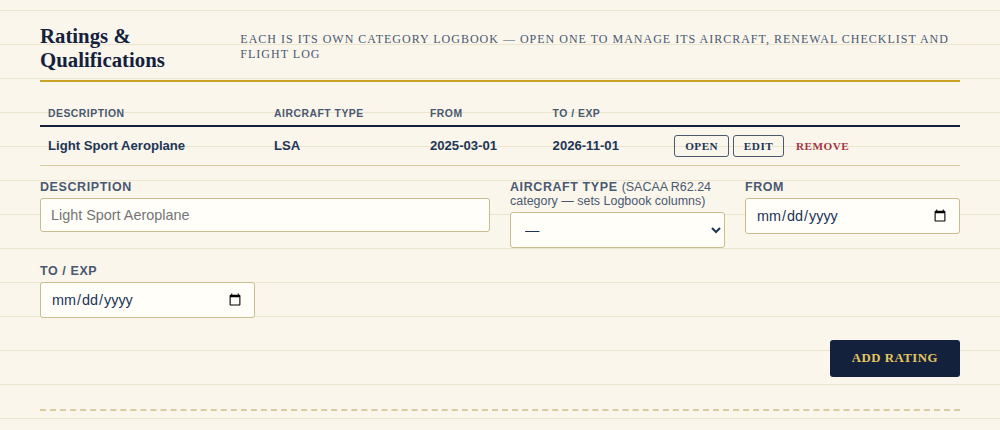
- Pilot tab, Ratings & Qualifications. Add each licence category on your licence (for example Light Sport Aeroplane) with its start and end dates, then press Add Rating. Each category has its own logbook.
- Press Open next to the category you just added. The top of the screen now shows that category.
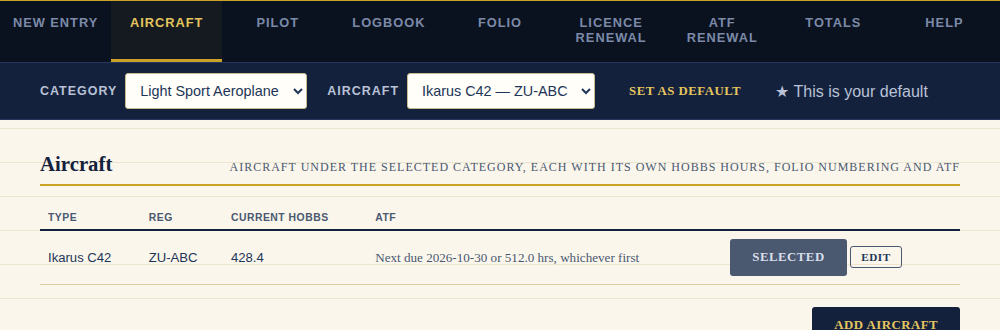
- Aircraft tab. With that category chosen, press Add Aircraft and fill in its type, registration and current Hobbs hours. Do this for every aircraft you fly in that category.
Repeat steps 2 to 4 for each category you hold.
Your hours from before FolioFly (from your paper logbook) go in once. Open the Logbook tab with that category chosen, fill in Brought Forward — PIC, Brought Forward — Dual and the date, then press Save Brought Forward. FolioFly carries on from there. You don't have to stop using your paper logbook.
The Category and Aircraft bar
Under the tabs on most screens are two boxes: Category and Aircraft. What you choose there decides what New Entry, Aircraft, Logbook, Folio, Licence Renewal and ATF Renewal show you. Each category has its own logbook, and each aircraft has its own folio and hours.
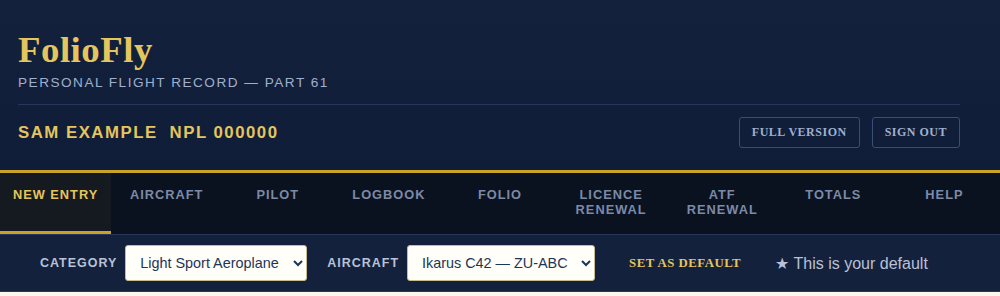
- FolioFly remembers your last choice on that phone or computer.
- Set as Default saves your choice for a new phone or computer you haven't signed in on before. Do it once.
Logging a flight
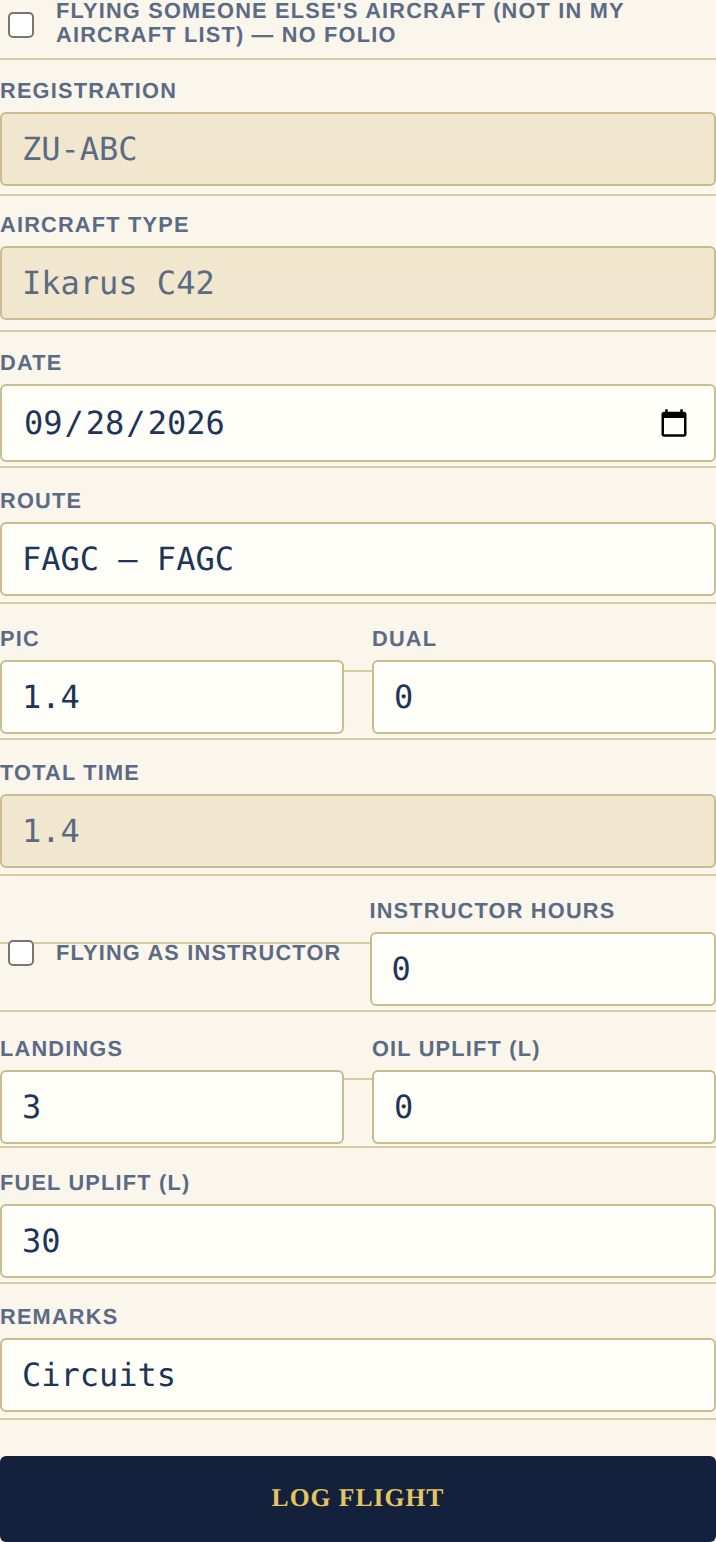
- Check the right Category and Aircraft are chosen at the top.
- Open New Entry. It's the first tab.
- Fill in the date, route, your hours (PIC or Dual, Day or Night), landings, oil and fuel, and any remarks.
- Press Log Flight.
FolioFly fills in your logbook and the aircraft's flight folio together: the folio number, airframe hours, landings, oil and fuel.
Flying someone else's aircraft
If the aircraft isn't in your Aircraft list, tick Flying someone else's aircraft first. Then type the registration and type yourself. The flight counts toward your hours, but it doesn't get a folio page.
No signal?
If you've no connection, FolioFly saves the flight on your phone and says so. It sends it by itself when you're back online. A bar on the New Entry screen shows how many are waiting, and Send Now sends them straight away. Don't sign out or clear your browser until they've gone.
Fixing a mistake
Open the Logbook tab, find the flight and press Edit. You can change its details, but not which aircraft or category it belongs to.
Recording a defect
- On New Entry, open the Flight Folio Defect tab.
- Choose the date, describe the defect and what was done about it.
- Press Save Defect Record.
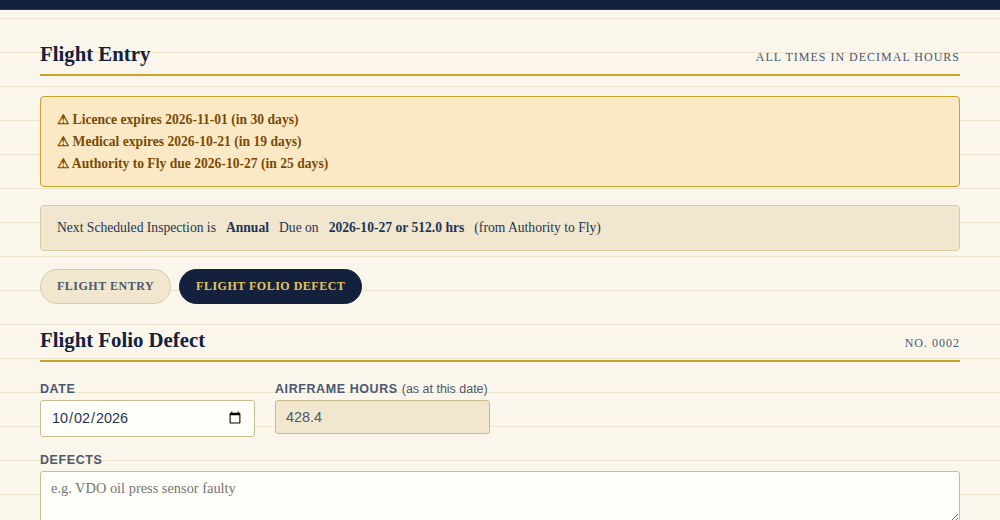
It goes onto the folio page that was current on that date.
Your logbook and folio
- Logbook shows the chosen category's flights with running totals. Press Print Logbook to print it.
- Folio shows the chosen aircraft's Flight Folio and Defect Report, in pages of 12 flights like the paper form. Press Print Folio to print it. It prints sideways on its own, with your licence number filled in on each flight and a space beside it for your signature.
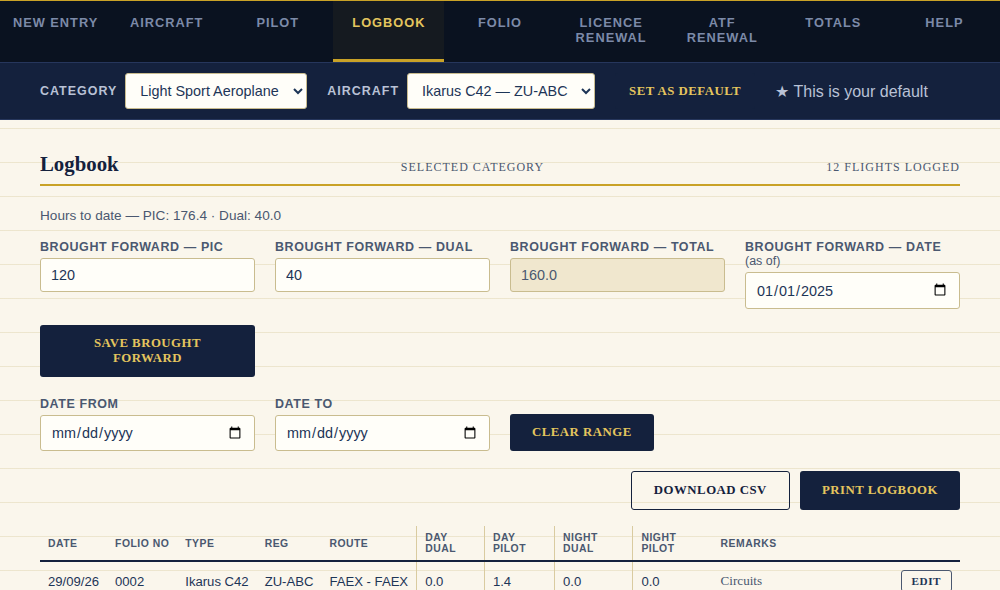
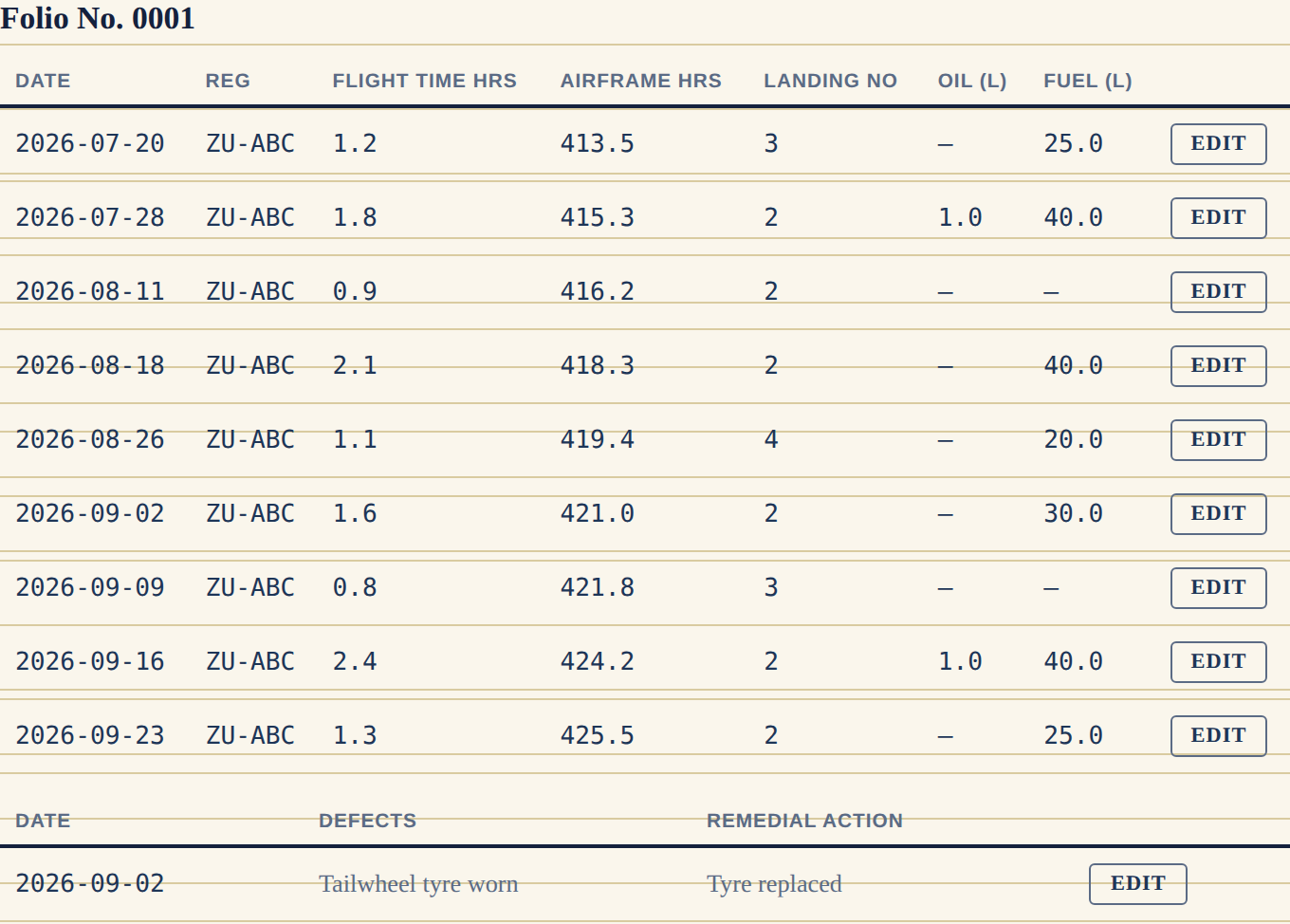
Both screens have Date From and Date To boxes if you only want part of your history. Download CSV on the Logbook gives you a spreadsheet of your flights, saved in your Downloads folder.
Totals and passenger currency
The Totals tab shows your hours across every category and aircraft, and by category. Use the date boxes to look at a period.
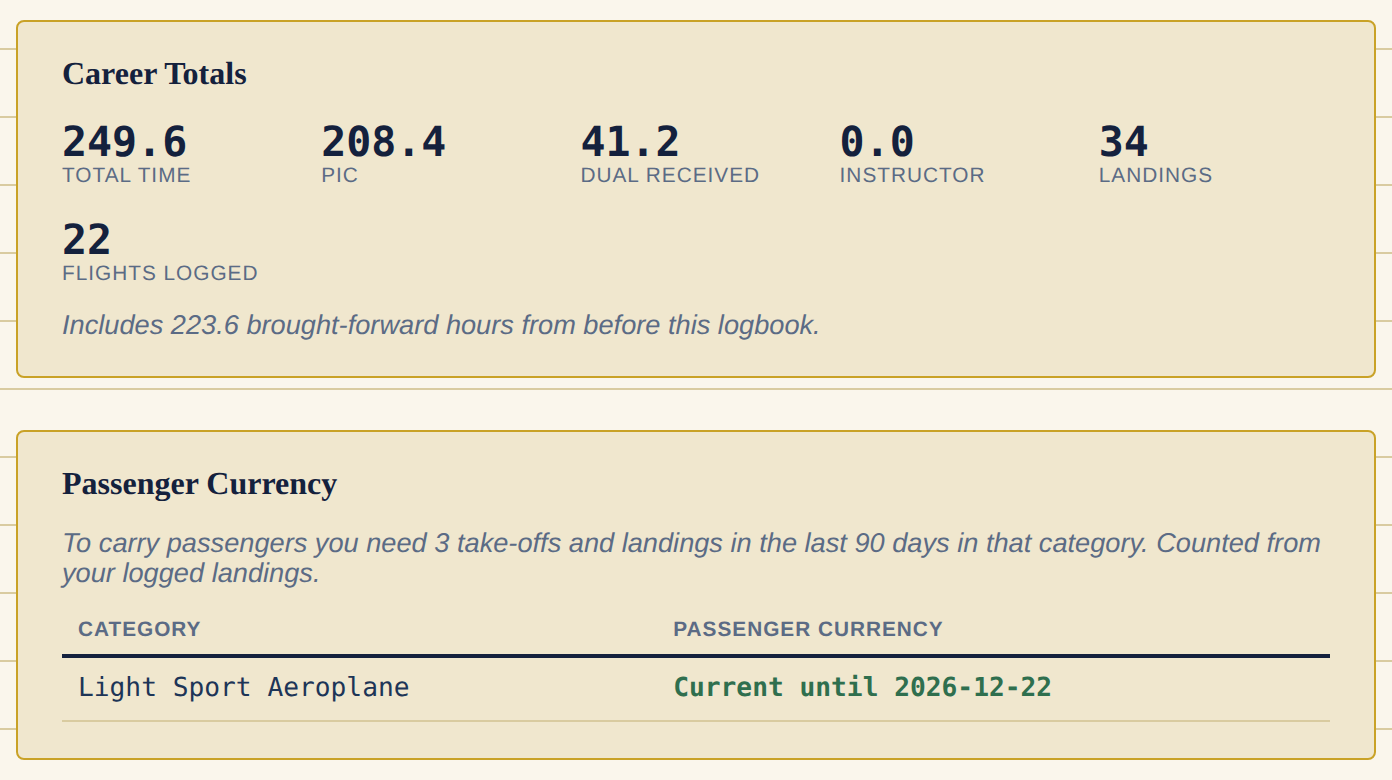
Passenger Currency shows whether you're allowed to carry passengers in each category: you need 3 take-offs and landings in the last 90 days, counted from the landings you've logged. It says "Current until" a date, or how many landings you still need.
Reminders
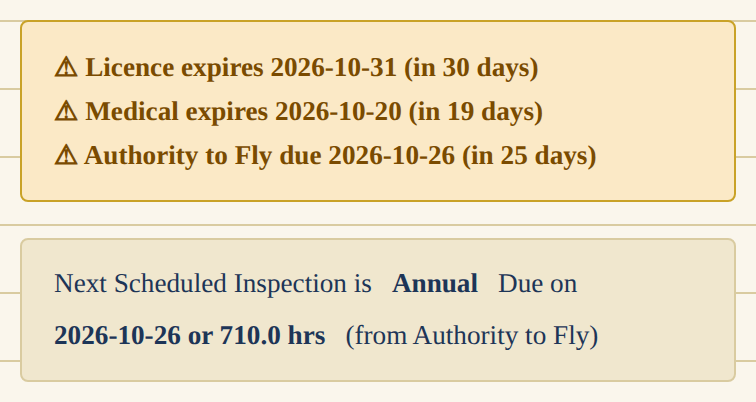
- On New Entry, a banner warns you when the chosen category's licence, that aircraft's Authority to Fly, or your medical is close to running out or already has. It also warns you if you're not current to carry passengers.
- On the Pilot tab, a banner shows this for everything at once: every category and every aircraft.
- Expiry Reminder on the Pilot tab sets how many days ahead you want to be warned.
Licence renewal
Full version
Choose the category, then open the Licence Renewal tab. It has two parts.
- Licence Renewal Records: after a flight test or proficiency check, add a record: the date, result, instructor, hours flown and the licence's new expiry date. Calculate Hours from Logbook fills in your PIC and Dual hours from a date range you choose. The flight test counts as Dual, not PIC, because the examiner or instructor flies with you. Print Logbook for This Renewal prints your logbook for the examiner.
- Renewal Requirements: the list of things SACAA asks for: the flight test report, form CA 62-02, your medical certificate, a logbook summary, a logbook endorsement, a photo and the fees. Under each one, attach a dated copy as you gather it: choose a date and a file, then press Add. Older copies stay. Nothing is overwritten. Press View to open one, or the cross to remove one. Next to Fees there are links to SACAA's licence fees and to its fees page, where you choose Pilot Licensing Fees (04). FolioFly also reads SACAA's current user fees document and shows the biennial currency fee for the National Pilot Licence there, with the name of the document they came from. Always check them on SACAA's own schedule before you pay. If FolioFly can't read an amount, it just shows the links.
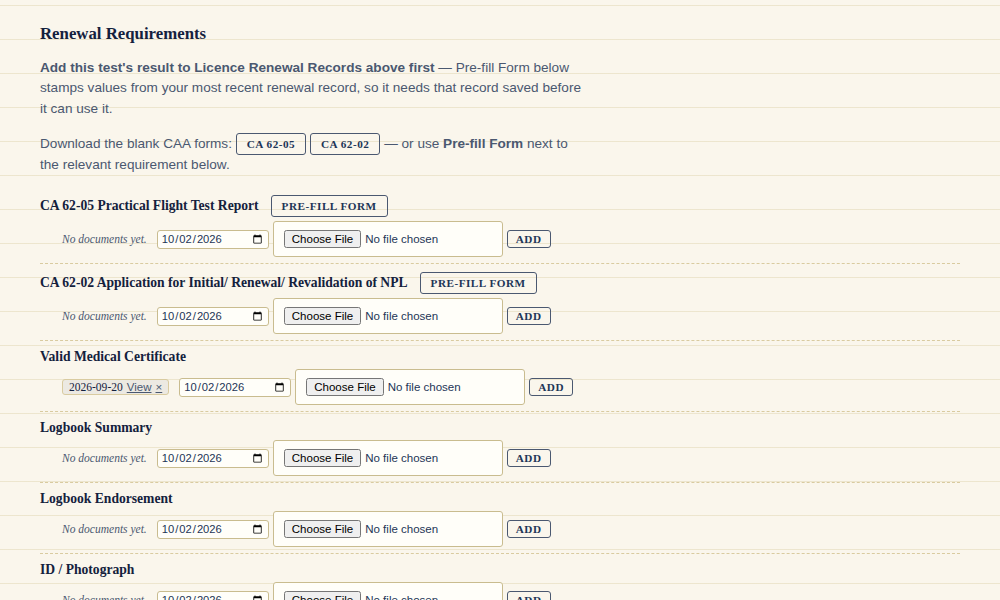
Where a requirement has a SACAA form, a Pre-fill Form button fills it in with your details and hours. The buttons at the top of the list also download the blank forms. See "Pre-filling a SACAA form" below.
Authority to Fly renewal
Full version
Choose the aircraft, then open the ATF Renewal tab. It works like Licence Renewal, for one aircraft's yearly airworthiness renewal.
Before you pre-fill the form
Open Aircraft, press Edit on the aircraft and check these are right. Pre-fill only ticks the box that matches what's saved:
- Type: CCM, WCM, LSA, GYR or Other.
- Certification Category: Amateur, Production, Ex Military or Veteran.
- Type of Operation: Part 94, Part 96 or Part 141.
- Manufacturer, serial number, date and country of manufacture, maximum and empty weight, and the engine and propeller sections.
The requirements checklist
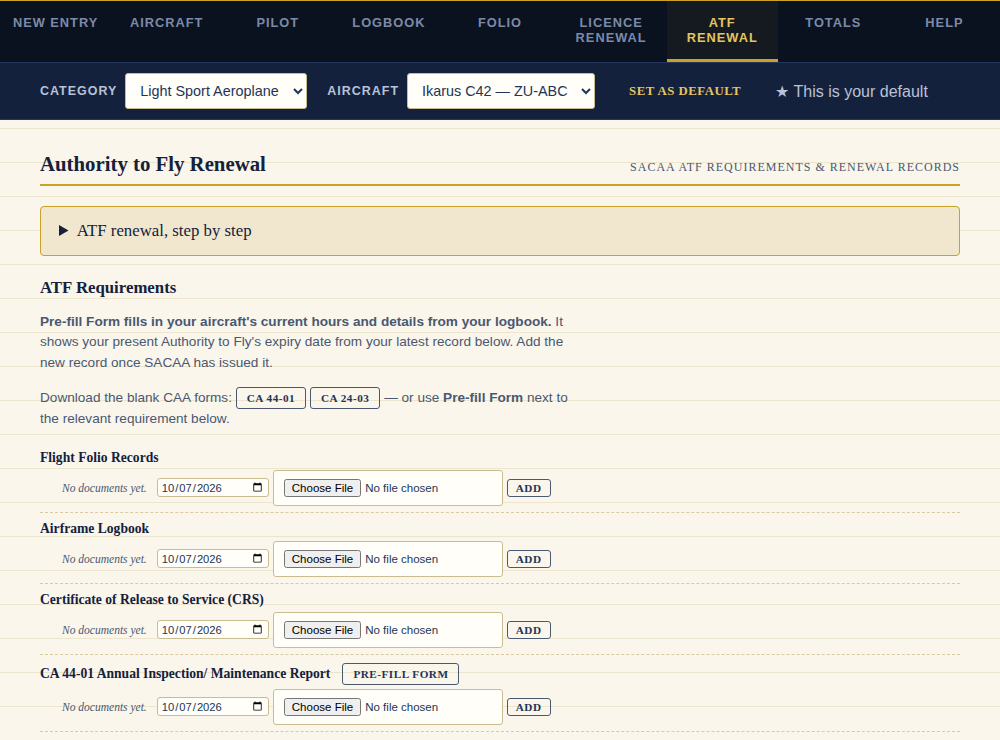
Thirteen items are added for you the moment you add an aircraft, in the order they turn up in a renewal: the last 12 months of folio records, the airframe logbook, the Certificate of Release to Service, the annual inspection report (CA 44-01), scheduled maintenance as per the aircraft's maintenance schedule (AMS), the application form (CA 24-03), the mass and balance report, the equipment list, the radio station licence, third-party insurance, the certificate of registration and your last ATF, a recent photo of the aircraft, and proof of payment. The scheduled maintenance item is only for an aircraft whose CA 44-01 has "Schedule maintenance as per AMS" ticked instead of Annual Inspection; otherwise leave it. Attach a dated copy of each as you gather it. Next to Proof of Payment there are links to SACAA's user fees (which include the Authority to Fly fee) and to its fees page, where you choose User Fees (03). FolioFly also reads SACAA's current user fees document and shows the Authority to Fly fee there, with the name of the document it came from. Always check it on SACAA's own schedule before you pay. If FolioFly can't read the amount, it just shows the links.
Email all the documents
Under the list is a box called Email All Documents. It stays switched off until every item has at least one document attached (the scheduled maintenance item is only needed if it applies to you). Until then it tells you which items are still missing.
When it is ready, check the Send to address (it starts as updates@caa.co.za, and you can change it) and press Email Documents. FolioFly turns every document into a PDF, numbered in renewal order, asks you to confirm, and sends them all in one email. You get a copy in your own inbox. The email shows your name, and when the person at the other end presses Reply, the reply comes to you.
If FolioFly cannot send it (for example the documents are very big, or you have no signal), it tells you why and uses your own email program instead. On a phone it opens the share screen with the PDFs attached. On a computer it saves the PDFs to your Downloads folder and opens an email for you to attach them to.
Authority to Fly records
When the renewal comes through, add a record: date issued, valid until, and any remarks. Edit and Remove work like they do for licence records.
Step by step
At the top of the ATF Renewal tab there is a box called ATF renewal, step by step. It lists everything in order, with a button beside each step that takes you to the right place.
- Log your latest flights, including any flight to your AMO. Check the aircraft's hours.
- Add the annual inspection to the folio with the date you expect it to be done, so your AME has a line to sign. If the date changes, press Edit on that line in the Folio and change the date.
- Get the folio to your AME. Print it, or save it as a PDF and send it to your AME to print.
- Your AME does the inspection, signs and stamps the folio line, updates the airframe logbook, and issues the Certificate of Release to Service (CRS).
- Log the CRS with a scan. Attach the signed folio copy and the logbook copy.
- Pre-fill CA 44-01 and CA 24-03, check them, and sign them.
- Attach the rest of the documents, then submit everything to SACAA with your proof of payment.
- When SACAA issues the new Authority to Fly, add it under Authority to Fly Records.
Adding the annual inspection to the folio
Do this before the inspection, so the line is on the folio when your AME signs it.
- On the ATF Renewal tab, find Annual Inspection. Check the date. FolioFly fills in the airframe hours.
- Check your AME's details. They are the ones from last time, since it is normally the same AME each year. Fix anything that has changed. These go on CA 24-03, section 2. If you leave them empty, section 2 stays blank and you must write the AME's details in by hand on the printed form.
- Press Add Annual Inspection to Folio. It is added at the bottom of the Flight Folio, for example "Annual Inspection 707.3 Hobbs". Your AME signs it when you print the folio.
- Update your airframe logbook with your AME, then attach a copy under Airframe Logbook with Add.
Pre-filling a SACAA form
- Check the aircraft's hours and details are up to date. FolioFly takes the hours from your logbook, so log your latest flights first. Your present Authority to Fly's expiry date comes from your latest record under Authority to Fly Records. You add the new record only after SACAA has issued it.
- Press Pre-fill Form next to the form.
- For CA 24-03, answer the two questions about accidents and procedures with Yes or No, then press Continue to Pre-fill. These change every renewal, so FolioFly asks each time.
- The form opens with your details filled in and the right boxes ticked. Check everything carefully. Nothing is saved until you press Download. The file goes to your Downloads folder, so look there to find it.
- Print it, sign it, and attach the signed copy under the requirement with Add if you want to keep it.
FolioFly fills in what it knows, but you are responsible for what you hand in. Always read the form through before you sign it. FolioFly checks the SACAA website regularly for changed forms and fees, but the forms and fees are SACAA's, and it can take a short while for FolioFly to catch up. Always check the current form and fees on the SACAA website before you send anything in.
Folio since the last ATF
- Press Set Folio Range to Since Last ATF & Go to Folio. The Folio opens with only the flights since your last ATF was issued.
- Leave Date To empty. That means up to today.
- Press Print Folio. It prints sideways.
- Attach the copy under Flight Folio Records with Add if you want to keep it.
Certificates of Release to Service
Keep a log of every CRS (for example after a propeller change or an engine overhaul), each with a photo or scan if you like. When you save an aircraft with a new propeller serial number, FolioFly offers to log one for you.
Your documents
Full version
You can keep photos and scans of your documents against the requirement they belong to (and the aircraft's radio licence). Choose a date and a file, then press Add. To look at one, press View. To remove one, press the cross next to it.
- PDF files and photos are fine (JPEG, PNG, WebP or HEIC).
- Each file can be up to 10 MB. A photo straight from a new phone can be bigger than that. If it's refused, take it again at a lower quality or scan it as a PDF.
- Each document is only visible to you, and to FolioFly only while you have switched on help (see "Getting help from FolioFly").
Backing up your records
Your records are kept online, so a lost phone doesn't lose them. It's still wise to keep a copy of your own, and FolioFly reminds you.
- Sign in on a laptop or computer. The backup button is switched off on phones and tablets.
- Open the Pilot tab, find Your Data and press Download Full Backup (ZIP). Wait while it collects your records and documents.
- A file called foliofly-backup- and the date appears in your Downloads folder.
- Copy it somewhere safe, like a memory stick or your cloud drive.
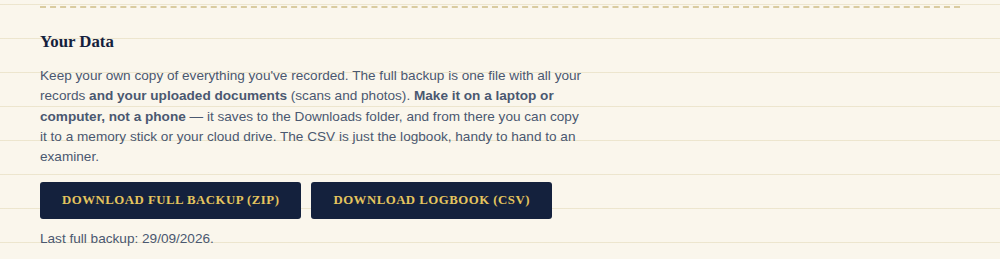
The file holds your logbook (logbook.csv, which opens in Excel), every record in your account (backup.json) and all your uploaded documents (in a documents folder). The date of your last backup is shown under the buttons.
A bar on your first screen asks you to back up the first time, and again after 7 days if your logbook has changed. Press Not Now and it waits another 7 days.
The backup file holds your ID number, address and licence details. Keep it somewhere private, and don't send it to anyone you don't trust.
If you only want your flights, Download Logbook (CSV) gives you the spreadsheet by itself. That's handy for an examiner.
Your plan
- The logbook is free, always: your flights and folio for one aircraft, passenger currency, printing and downloading your records.
- The full version is R980 a year: your SACAA renewal forms filled in for you, reminders before things run out, your licence and Authority to Fly records, photos of your documents, and more than one aircraft.
To pay, open the Pilot tab, find Your Plan and press Pay R980 for a year. You pay on PayFast's secure page by card, Instant EFT or the other options there. The year starts from today, or from the end of your current year if you pay early.
If your full version runs out, you keep the free logbook. Everything you recorded stays there to look at, and nothing is deleted. You just can't add new full-version records until you renew.
Getting help from FolioFly
Records are private to you. If you're stuck and want help, you can let FolioFly look at them for a few days. Only you can switch this on or off.

- Open the Pilot tab and find Help from FolioFly.
- Press Let FolioFly see my records for 7 days, then let us know what you need help with.
- To stop it sooner, press Stop now.
FolioFly can only look. It can't change anything. It switches off by itself after 7 days. Without this, FolioFly only sees when you last signed in and how many flights and aircraft you have, not what's in them.
If something goes wrong
A "Loading…" sign stays on the screen
FolioFly is waiting on the internet. Check your signal, wait a moment, and refresh the page. If it keeps happening, email us.
"No connection"
Your flight is saved on your phone and will send when you're back online. See "No signal?" above.
"…is part of the full version"
That feature needs the full version. See "Your plan". Your free logbook keeps working.
A document won't upload
It must be a PDF or photo, up to 10 MB, and needs the full version. Try a smaller photo or a PDF scan.
I can't sign in
Press Forgot password? and use the email link. Open it on the same phone or computer. Links stop working after a while, so ask for a new one if it says the link has expired. If no email comes, check your Spam or Junk folder. Or type the code from the email: press Type the code from your email.
Something else
Email hello@foliofly.co.za and say what you were doing and what you saw on the screen. A photo of the screen helps.